This guide explains how to configure and use Eleventex_AutomaticRelatedProducts step by step.
1. What This Module Does
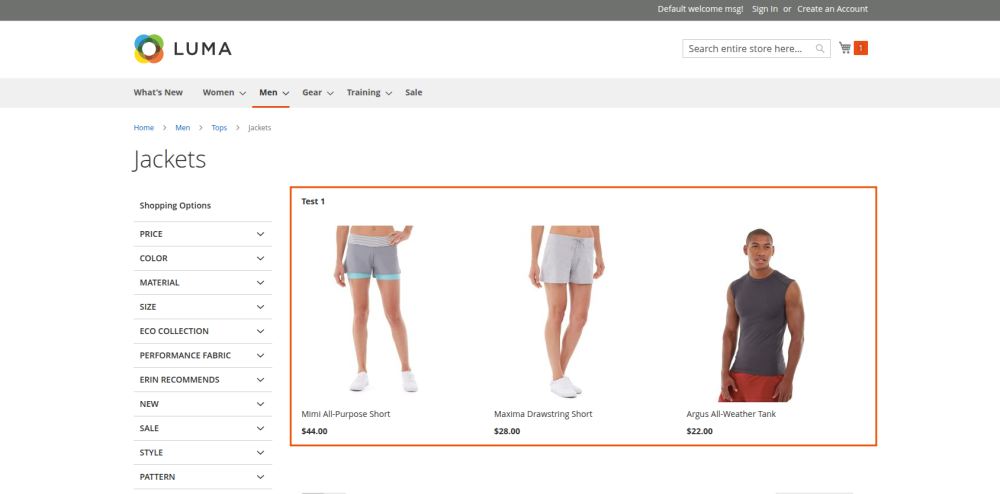
The module automatically displays product recommendations on:
- Product pages (
Related Products,Upsell Products) - Category pages (custom recommendations block)
- Shopping cart page (
Cross-sell Products)
It works through configurable rules (conditions, source, display pages, position, dates, store views, and priority).
2. Prerequisites
Before configuring rules, ensure:
- Module is installed and enabled in Magento.
- Cache is clean.
- You have admin access to
Eleventexmenu andStores > Configuration.
3. Open Module Settings
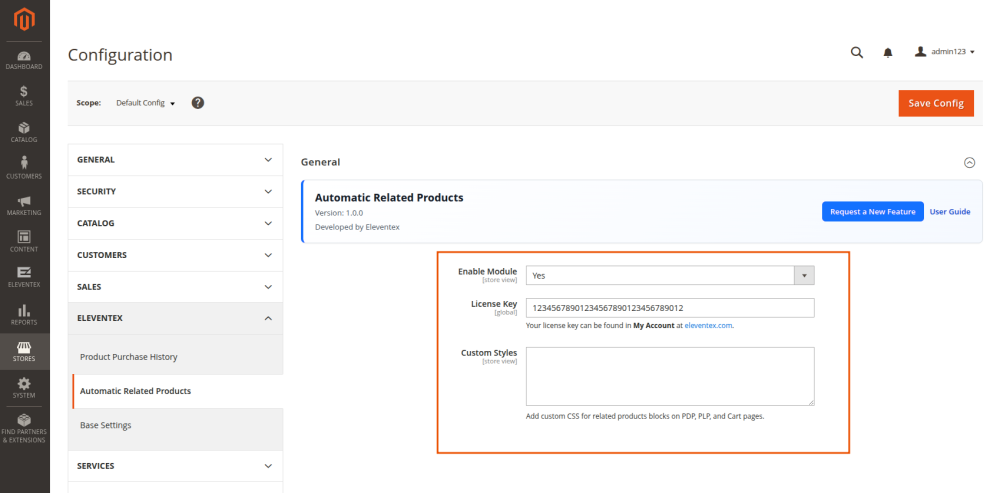
Go to: Stores > Configuration > Eleventex > Automatic Related Products
3.1 Configure General Settings
- Set
Enable ModuletoYes. - Enter
License Key(if required by your project/license flow). - Add CSS in
Custom Stylesto style recommendation blocks globally. - Save config.
4. Open Rules Grid
Go to: Eleventex > Automatic Related Products > Rules
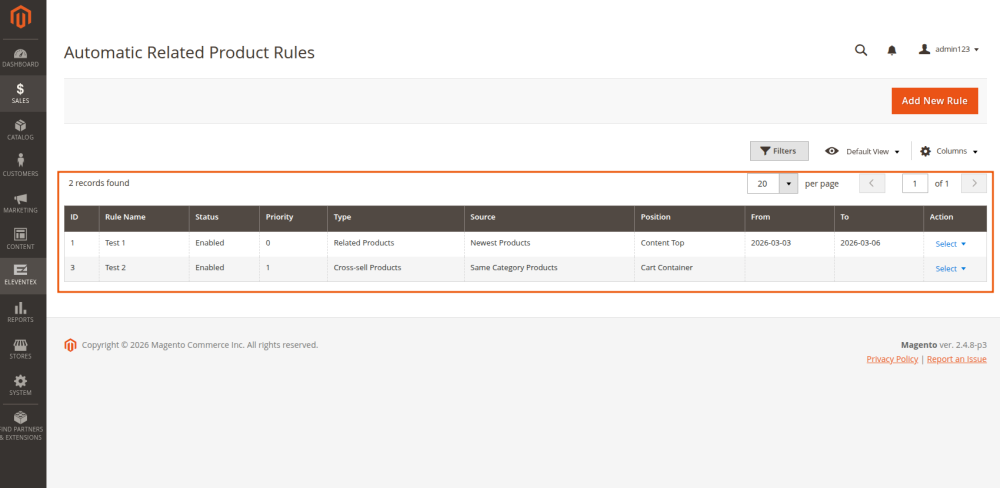
From here you can:
- Add new rules
- Edit existing rules
- Set priority and status
5. Create a New Rule (Step by Step)
- Click
Add New Rule. - Fill Rule Information (see full field details below).
- Define Conditions for when this rule should apply.
- Click
Save.
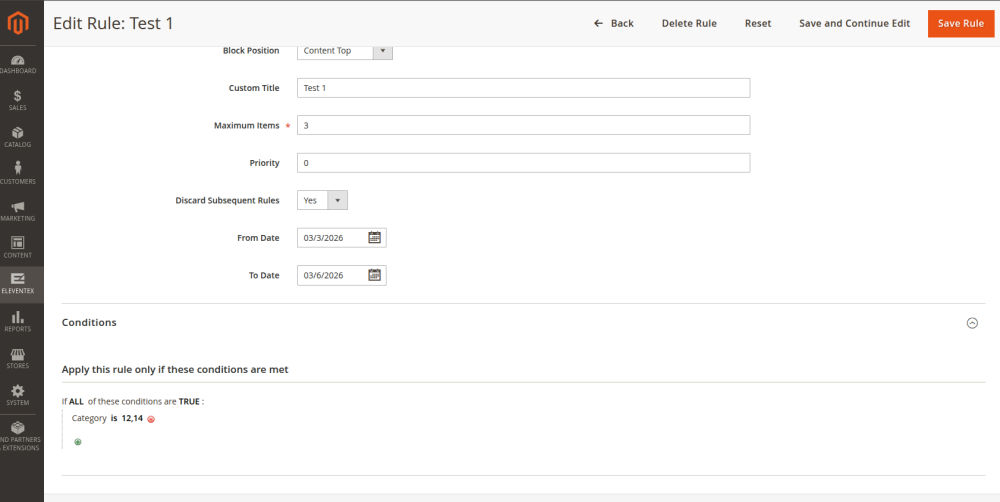
6. Rule Fields Explained
6.1 Basic Rule Fields
Rule Name: internal name for admins.Active: enable/disable this rule.Store Views: stores where the rule applies.Display Pages:- Product Page
- Category Page
- Shopping Cart Page
6.2 Recommendation Settings
Recommendation Type:- Related Products
- Upsell Products
- Cross-sell Products
Recommendation Source:- Same Category Products
- Bestsellers
- Newest Products
Block Position:content.topcontent.asidecontentcontent.bottomsidebar.maincheckout.cart.container
Custom Title: overrides default block title.Maximum Items: max products to show.
6.3 Priority and Schedule
Priority: lower value = higher priority.Discard Subsequent Rules: available in form (stored), but current matching is first-match based on priority anyway.From Date/To Date: optional date window.
6.4 Conditions
Use Magento conditions to target product attributes, categories, and other product-level criteria.
7. Important Validation Rules (When Saving)
Magento will prevent invalid combinations:
- If
Display PagesincludesShopping Cart Page, thenRecommendation Typemust beCross-sell Products. - If
Display PagesincludesProduct Page, thenRecommendation Typemust beRelated ProductsorUpsell Products.
8. How Matching Works (Functional Behavior)
For each context, the module checks rules in this order:
- Active rules only
- Matching page type
- Matching recommendation type
- Date validity
- Store scope
- Conditions
- First matched rule wins (by
Priority, thenRule ID)
9. Behavior by Page Type
9.1 Product Page
- A rule can control
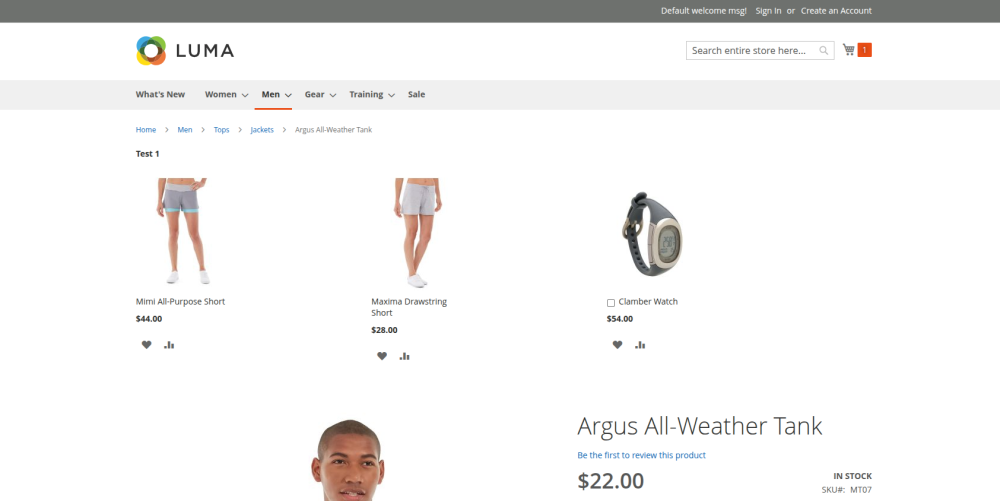
Relatedblock and another rule can controlUpsellblock. - If rule has
Custom Title, it is shown. - If no rule matches:
- Native Magento items are kept if they exist.
- If native list is empty, module fallback can still fill products.
9.2 Category Page
- Module renders a dedicated recommendation block.
- Block appears when a category rule matches and returns products.
- Position can be changed by rule
Block Position.
9.3 Shopping Cart Page
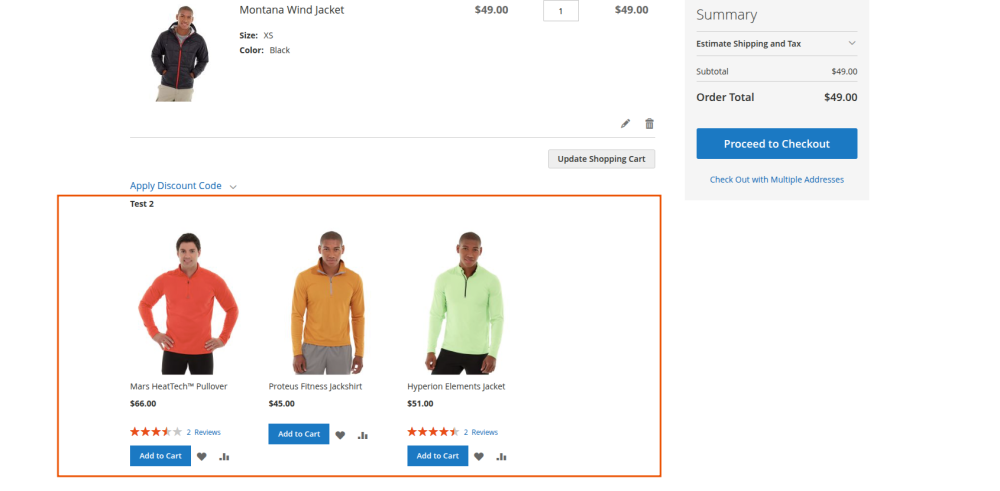
- Works with cross-sell recommendations.
- Uses cart products as context for matching and fallback generation.
- Position can be changed by rule
Block Position.
10. Recommendation Source Types
10.1 Same Category Products
Selects products from relevant categories (based on product/category context).
10.2 Bestsellers
Prioritizes products by ordered quantity.
10.3 Newest Products
Prioritizes recently created products.
Note: The module excludes the current product/cart products and applies stable deterministic selection for larger pools.
11. Styling Recommendations
Option A: Admin Custom Styles
Add CSS in: Stores > Configuration > Eleventex > Automatic Related Products > Custom Styles
Good for quick global changes per scope.
Option B: Theme-Level Styling
Customize CSS in your theme for long-term maintainable styling.
12. Positioning Recommendations
The rule Block Position moves recommendation blocks to selected layout containers.
If a block does not move as expected, verify the selected container exists in your theme/layout for that page.
13. Suggested Setup Scenarios
Scenario A: Product Related by Category
- Display Pages:
Product Page - Type:
Related Products - Source:
Same Category Products - Conditions: product attribute filters (optional)
- Position:
content.bottom
Scenario B: Product Upsell with New Arrivals
- Display Pages:
Product Page - Type:
Upsell Products - Source:
Newest Products - Max Items: e.g.
6
Scenario C: Cart Recommendations by Bestsellers
- Display Pages:
Shopping Cart Page - Type:
Cross-sell Products - Source:
Bestsellers - Position:
checkout.cart.container
Scenario D: Category Recommendation Section
- Display Pages:
Category Page - Type: choose the display label behavior you want
- Source:
Same Category ProductsorBestsellers - Add category-related conditions
14. QA Checklist (After Configuration)
- Module enabled in config.
- Rule is active and assigned to correct store view.
- Rule date range includes current date.
- Rule conditions match the tested product/category/cart context.
- Rule priority is higher than competing rules.
- Frontend block title/position/items match expected behavior.
- Cache cleaned after major config/layout changes.
15. Troubleshooting
- No products shown:
- Check rule conditions, dates, store scope, and max items.
- Wrong rule appears:
- Check
Priorityvalues and overlapping conditions.
- Check
- Block in wrong place:
- Verify chosen container exists in your theme layout.
- Styling not applied:
- Clear cache and confirm CSS selectors target rendered markup.
16. Useful Paths
- Rules:
Eleventex > Automatic Related Products > Rules - Settings:
Stores > Configuration > Eleventex > Automatic Related Products
17. After Changes
Run:
bin/magento cache:clean
bin/magento cache:flush
If needed (production/static changes):
bin/magento setup:static-content:deploy -f