Salesforce passkeys provide a faster and more secure way to verify your identity or sign in without relying entirely on a traditional password. A passkey can use Windows Hello, Touch ID, Face ID, a compatible password manager, a mobile device, or a physical security key.
However, relying on only one passkey can create a problem. You could lose your phone, replace your laptop, clear your password manager, or temporarily use a computer that does not have access to your usual passkey.
The solution is simple: register more than one passkey for your Salesforce account.
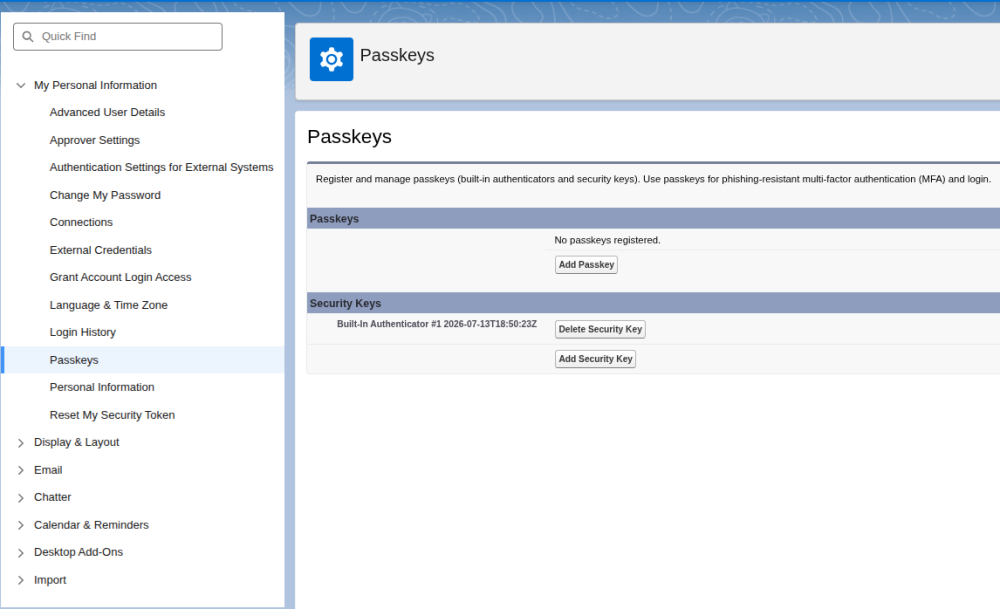
Salesforce now provides a dedicated Passkeys page in personal settings where users can view registered passkeys and security keys, add new ones, and remove credentials they no longer use.
Why Should You Add Multiple Passkeys?
Adding a second passkey gives you a backup authentication method when your primary device is unavailable.
For example, you could configure:
- One passkey in your computer’s built-in authenticator, such as Windows Hello or Touch ID.
- One passkey in a compatible password manager.
- One passkey on your phone.
- One physical security key stored in a secure location.
Salesforce recommends that administrators register at least two verification methods and consider keeping a backup security key in a secure location.
Passkeys can either be synchronized through a passkey provider or remain tied to a particular device. A synchronized passkey may be available across devices connected to the same account, while a device-bound passkey is available only through the device or hardware key where it was created.
How to Add Another Passkey in Salesforce
Follow these steps while logged in to Salesforce:
- Click your profile avatar in the upper-right corner.
- Select Settings.
- Open the Passkeys section. You can also search for “Passkeys” in the personal settings Quick Find box.
- Click Add Passkey.
- Follow the browser or operating system prompt.
- Select where you want to save the passkey.
- Confirm the registration using your fingerprint, face recognition, device PIN, password manager, phone, or security key.
Repeat the process to add another passkey using a different device or storage provider.
For example, your first passkey could be stored through Windows Hello, while your second passkey could be saved in a password manager or on your phone.
The idea for this setup was highlighted in a Salesforce community discussion: instead of depending on one authentication method, users can register additional passkeys from Settings > Passkeys > Add Passkey.
Where Is the Passkey Stored?
The storage location depends on the option you choose during registration.
Built-In Device Authenticator
The passkey can be connected to a built-in authentication method such as:
- Windows Hello
- Touch ID
- Face ID
- Your computer or phone’s device PIN
Some built-in authenticators are tied to one specific device. Salesforce warns that users who access Salesforce from multiple devices should configure a secondary verification method to avoid needing an administrator-generated temporary verification code.
Password Manager
A compatible password manager may store and synchronize the passkey across your approved devices.
This can be convenient when you regularly switch between computers, but availability depends on your password manager, browser, operating system, and company security policies.
Mobile Device
When Salesforce displays a QR code, you may be able to scan it with your phone and save the passkey through the phone’s passkey provider.
Cross-device authentication allows a passkey stored on one device, such as a phone, to authenticate a login initiated on another device, such as a laptop.
Physical Security Key
A physical FIDO2-compatible key can also act as a passkey. This is a useful backup for administrators because it can be stored securely and used when the primary computer or phone is unavailable. Salesforce supports WebAuthn and FIDO2 security keys for identity verification.
How to View or Remove Salesforce Passkeys
To manage existing passkeys:
- Click your profile avatar.
- Open Settings.
- Select Passkeys.
- Review the registered passkeys and security keys.
- Delete any credential associated with a lost, replaced, or retired device.
Do not remove your only working passkey until you have successfully registered and tested another authentication method.
When replacing a laptop or phone, add the new passkey first, test it in a separate browser session, and then remove the old credential.
Recommended Passkey Setup
For most Salesforce users, a practical setup is:
- A primary passkey stored on the computer used for daily work.
- A secondary passkey stored on a phone, password manager, or separate device.
For Salesforce administrators and other privileged users, consider:
- A primary built-in passkey.
- A backup physical security key.
- A second administrator account capable of restoring user access.
Salesforce classifies built-in authenticators and physical security keys as phishing-resistant verification methods.
What If the Passkeys Menu Is Missing?
The Passkeys page or passwordless login option may be unavailable when:
- Your Salesforce org has not enabled the required identity verification settings.
- Your profile or login configuration does not support the feature.
- Your browser, operating system, or device does not support the selected passkey method.
- Your company has disabled Windows Hello, biometric authentication, password managers, or security-key access.
- You are logging in through an external single sign-on provider that manages authentication separately.
A Salesforce administrator can review the org-level configuration under:
Setup > Identity Verification
For passwordless login, the administrator may need to enable:
- Let users verify their identity with a built-in authenticator (passkey) such as Touch ID or Windows Hello.
- Let users verify their identity with a physical security key (passkey) such as U2F or WebAuthn.
Important: Do Not Use Multiple Passkeys to Share an Account
Technically, registering multiple passkeys means that more than one device can authenticate the same Salesforce user. However, this should not be used as a workaround for sharing one Salesforce account among multiple employees or developers.
Salesforce explicitly prohibits shared user credentials and requires each person to have an individual user account. Shared accounts also make auditing difficult because Salesforce cannot reliably determine which person performed a particular action.
Multiple passkeys should be used to provide backup access for the same person, not to distribute one Salesforce login among a team.
Final Thoughts
Adding multiple passkeys is a small configuration change that can prevent a major access problem later.
Instead of depending on one laptop or phone, register at least one secondary passkey and test it before you need it. This is especially important for Salesforce administrators, developers working across multiple environments, and anyone who regularly changes devices.
A reliable passkey setup should give you convenient daily access, a secure backup method, and a clear process for removing credentials from devices you no longer use.